To set up a healthy home office, choose a sturdy desk with enough space and an adjustable chair that offers good lumbar support. Position your monitor at eye level and keep your keyboard and mouse aligned with your elbows to prevent strain. Make certain proper lighting by reducing glare and adding adjustable lights. Regularly stretch and move to stay comfortable, and personalize your space with plants or colorful accessories. Keep exploring to learn how to optimize every aspect for your best workspace.
Key Takeaways
- Choose adjustable, supportive furniture like ergonomic chairs and desks to promote proper posture and reduce fatigue.
- Position monitors at eye level and maintain proper distance to prevent neck and eye strain.
- Ensure adequate lighting and minimize glare with adjustable lights and anti-glare screens for visual comfort.
- Incorporate regular movement and stretching breaks to improve circulation and prevent stiffness.
- Personalize your workspace with plants, artwork, and accessories to enhance comfort, motivation, and overall well-being.
Choosing the Right Desk and Chair
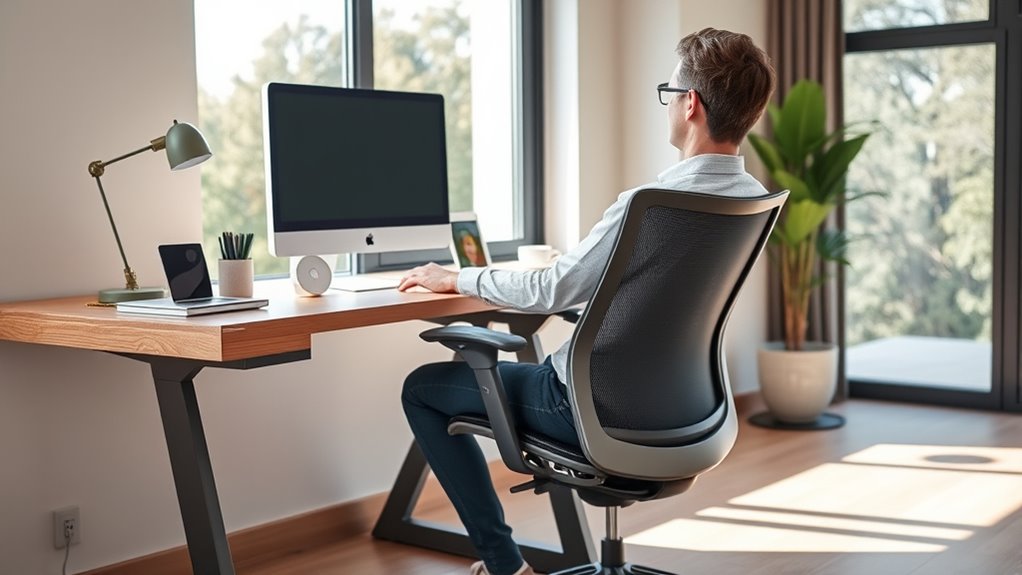
Selecting the right desk and chair is essential for creating a comfortable and productive home office. The desk material impacts durability and style; opt for sturdy options like wood or metal that can withstand daily use. Consider your workspace size and choose a desk that offers enough surface area without cluttering the room. When picking a chair, pay attention to cushioning—firm yet comfortable chair cushioning supports long hours of work without causing discomfort. Adjustable features like height and lumbar support are also vital for maintaining good posture. A well-chosen desk and chair combination will help reduce fatigue and prevent strain, making your home office a space where you can focus and work efficiently. Prioritize comfort and quality to create an inviting, ergonomic setup. Additionally, incorporating ergonomic principles into your workspace can further enhance comfort and productivity.
Proper Monitor Placement and Screen Height

To prevent neck and eye strain, it’s important to position your monitor correctly. Start by setting your monitor at eye level, so your neck remains in a neutral position. Adjust the monitor height using monitor calibration tools to assure the top of the screen is just below eye level. Proper screen resolution also plays a role; use the recommended resolution for your monitor to keep images sharp and clear. Avoid positioning the monitor too close or too far; about arm’s length away is ideal. Make sure the monitor is directly in front of you, not off to the side, to prevent unnecessary twisting of your neck. When your monitor is well-calibrated and at the right height, it reduces strain and enhances comfort during long work sessions. Incorporating expert voice actors in instructional videos can also increase viewer engagement and understanding of ergonomic practices.
Keyboard and Mouse Positioning

Ensuring your keyboard and mouse are positioned correctly can substantially reduce strain and prevent discomfort during long work sessions. Start by keeping your wrists straight, supported by wrist supports or ergonomic accessories to minimize pressure. Your keyboard should be at elbow height, allowing your arms to rest comfortably at your sides. Place your mouse close to your keyboard to avoid overreaching. Maintain a neutral wrist position, avoiding bending or twisting. Use ergonomic accessories like cushioned mouse pads or wrist rests to enhance comfort. Keep your forearms parallel to the floor, and ensure your wrists aren’t resting on hard surfaces. Adjust your workspace so that your hands and wrists stay in a natural, relaxed position, promoting better posture and reducing fatigue. Incorporate proper ergonomic principles to further optimize your workstation setup.
Optimizing Lighting and Reducing Glare
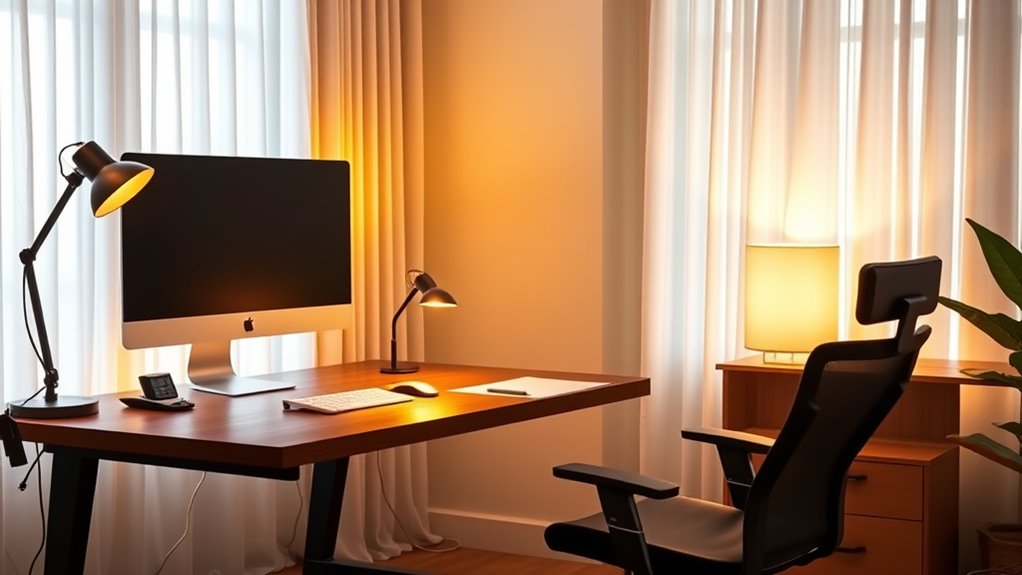
To improve your home office setup, focus on adjustable light placement so you can direct light where it’s needed without creating harsh shadows. You should also minimize screen glare by positioning your monitor away from windows and bright light sources. Making these small adjustments can markedly reduce eye strain and boost your comfort throughout the day.
Adjustable Light Placement
Adjustable light placement is essential for creating a comfortable and productive home office environment. Properly positioning your lights helps you focus on tasks without strain or glare. Use task lighting to illuminate your workspace directly, reducing eye fatigue. Incorporate ambient lighting to softly brighten the room and eliminate harsh shadows. Adjust your light sources so they don’t cast reflections on your screen or workspace. Keep lights adjustable, allowing you to change their angle and brightness as needed. This flexibility helps you find the ideal balance for different activities. Proper placement minimizes glare and shadows, making your workspace more comfortable and efficient. Remember, well-placed lighting supports your posture and reduces eye strain, keeping you focused throughout your workday.
Minimize Screen Glare
Reducing screen glare is essential for preventing eye strain and maintaining comfort during your workday. To achieve this, consider using a screen filter or an anti glare screen on your monitor. These accessories help diffuse harsh reflections from overhead lighting or windows, creating a softer viewing experience. Position your monitor to avoid direct sunlight or bright light sources that cause glare, and adjust your room’s lighting accordingly. Using an anti glare screen or filter minimizes reflections and reduces eye fatigue, especially during long work sessions. Additionally, keeping your screen clean and maintaining proper lighting conditions will further enhance visibility. When selecting a keto diet app, look for features that help you monitor your progress and adjust your plan as needed. By taking these steps, you’ll protect your eyes and improve overall comfort while working at your home office.
Incorporating Movement and Breaks

To stay comfortable and prevent fatigue, it’s important to incorporate regular movement and breaks into your workday. Setting up scheduled reminders can help you remember to stand or stretch at intervals. Use your breaks to do simple stretches that target tight muscles and refresh your focus. Being aware of proper ergonomic setup can also help prevent discomfort during extended periods of sitting.
Scheduled Movement Reminders
Incorporating scheduled movement reminders into your work routine helps prevent stiffness and fatigue, ensuring you stay alert and comfortable throughout the day. Setting alarms or app alerts for break reminders keeps you accountable to move regularly. When a reminder goes off, you can do simple stretching routines to loosen tight muscles and boost circulation. These quick breaks refresh your focus and reduce discomfort. Consider creating a visual cue, like a sticky note, to remind you to pause and stretch. Incorporating these habits into your schedule helps you maintain better posture and energy levels, making your home office experience more comfortable and productive. Consistent movement breaks are a simple yet effective way to support your ergonomic health while working remotely.
Stretching During Breaks
Taking regular breaks to stretch not only refreshes your body but also enhances your focus and comfort during work hours. Incorporate simple neck stretches and back exercises into your routine to reduce stiffness and prevent discomfort. During each break, try moving your head gently side to side or rolling your shoulders to loosen tension. Additionally, perform gentle back extensions to keep your spine flexible. Remember, consistent movement breaks improve circulation and posture. Use this table to understand the importance of these stretches:
| Stretch Type | Benefits |
|---|---|
| Neck stretches | Reduce tension, improve posture |
| Back exercises | Prevent stiffness, increase mobility |
| Breaks | Enhance focus, decrease fatigue |
Engaging in proper ergonomic practices during your breaks can further support your overall comfort and health.
Personalizing Your Workspace for Comfort

Personalizing your workspace is key to creating a comfortable and productive environment. When you focus on personal comfort and aesthetic customization, your workspace feels inviting and tailored to your needs. Add a cozy chair cushion or a supportive lumbar pillow to enhance comfort. Use colorful or themed desk accessories to reflect your personality. Incorporate plants or artwork to make the space lively and relaxing. Adjust lighting to suit your mood, whether soft ambient or bright task lighting. These small touches help reduce strain and boost motivation, making your home office a space where you enjoy spending time. By customizing your environment, you’ll stay more focused and comfortable throughout your workday. Incorporating ergonomic principles into your setup can further improve your overall comfort and health.
Frequently Asked Questions
How Can I Prevent Wrist Strain During Long Work Sessions?
To prevent wrist strain during long work sessions, you should use wrist support and an ergonomic mouse. Keep your wrists in a neutral position, avoiding bending or twisting. Take regular breaks to stretch your hands and wrists. Adjust your mouse and keyboard height so your wrists remain straight. Using a padded wrist rest can also provide extra support, reducing fatigue and discomfort over extended periods.
What Are the Best Ergonomic Accessories for Small or Shared Spaces?
Did you know that over 60% of remote workers struggle with limited space? To maximize small or shared areas, choose space-saving furniture like foldable desks and compact chairs. Multi-functional accessories, such as storage ottomans or adjustable monitor stands, help keep your workspace organized without clutter. These ergonomic options boost comfort and productivity, making your small space feel more open and efficient without sacrificing essential support.
How Do I Adjust My Setup for Different Tasks or Work Styles?
To adapt your workspace for different tasks or work styles, start by adjusting your chair height so your feet are flat on the floor and your knees are at a 90-degree angle. Next, customize your desk layout by repositioning your monitor, keyboard, or tools to suit each task, ensuring everything is within easy reach. These adjustments help you stay comfortable and efficient, no matter what you’re working on.
What Are Signs of Poor Ergonomics That Need Immediate Attention?
A stitch in time saves nine, so pay attention to signs of poor ergonomics. If you notice posture issues like slouching, neck strain, or back pain, or experience eye discomfort and headaches, it’s time to act. These symptoms indicate your setup isn’t supporting you properly. Address them promptly by adjusting your chair, screen height, and taking regular breaks to prevent long-term health problems.
How Can I Create an Ergonomic Workspace on a Budget?
To create an ergonomic workspace on a budget, start with budget-friendly tips like adjusting your chair height and using household items for support. DIY ergonomic solutions, such as making a monitor stand from stacked books or using cushions for lumbar support, can make a big difference. Keep your screen eye level, take regular breaks, and verify your wrists remain straight. These simple steps help improve comfort without breaking the bank.
Conclusion
Remember, your home office should be a haven of comfort, not discomfort. While a sleek desk looks great, it’s your posture and setup that truly matter. A well-placed monitor beats a stylish space, and regular movement beats staying still. Prioritize your well-being over aesthetics, because in the end, a healthy, ergonomic workspace fuels productivity and happiness. Comfort and function go hand in hand—don’t let style overshadow your health.